HOW TO…
[kleo_h4] EDIT YOUR PROFILE [/kleo_h4]
[kleo_accordion opened=”none”] [kleo_accordion_item title=”Changing Base, Myself Summary, Looking For, Lifestyle, Physical Information, Privacy, and Changing Profile Picture”] Go to the admin bar at the top of the page (PROFILE/LOG OUT SECTION).
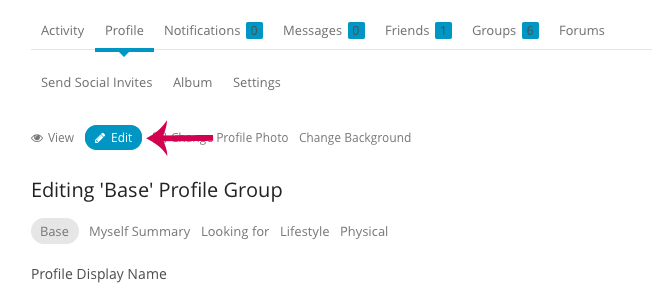
To EDIT FIELDS:
Select PROFILE.

Then scroll down the page and select PROFILE in the dashboard then click on EDIT. Scroll down to the page to your dashboard and choose EDIT.
 [/kleo_accordion_item]
[kleo_accordion_item title=”Changing Profile Image”]Go to the admin bar at the top of the page (PROFILE/LOG OUT SECTION). Click on PROFILE and then scroll down to your profile image. Place the cursor over the image and it will immediately say CHANGE PHOTO, click on it, and then CHOOSE FILE and once you have selected a file make sure to click on UPLOAD IMAGE. If you do not click on upload image it will not be saved!

[/kleo_accordion_item]
[kleo_accordion_item title=”Visibility”]PRIVACY VISIBILITY: In this section you will be able to view and edit all your details. There are a few options. You can choose to edit your Base, Myself Summary, Looking for, Lifestyle, & Physical information in this section. If you look below each description you will have the option to change your privacy settings and make it visible to: Everyone, Only Me, All Members, My Friends. Please make sure to always save your changes!
Select PROFILE and then scroll down to SETTINGS.
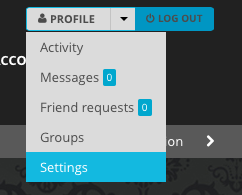
Scroll down the page to your dashboard and select PROFILE VISIBILITY.

[/kleo_accordion_item]
[kleo_accordion_item title=”Privacy”]PROFILE PRIVACY: In this section you will be able to RESTRICT your profile in several ways. Please make sure to always save your changes!
Select PROFILE and then scroll down to SETTINGS.
Scroll down the page to your dashboard and select PROFILE VISIBILITY.

[/kleo_accordion_item][/kleo_accordion]
[kleo_h4] ADD A MEMBER/CANCEL REQUEST/CANCEL FRIENDSHIP [/kleo_h4]
[kleo_accordion opened=”none”] [kleo_accordion_item title=”Add a Member”] Go to the top MENU BAR and click on SEARCH MEMBERS scroll down to MEMBERS SEARCH.
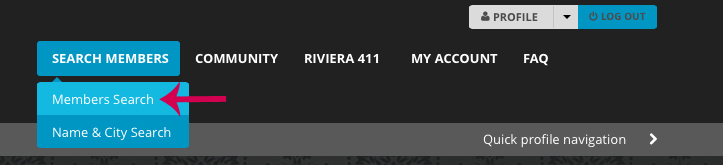
Search for members and click on their profile in the member header area click on ADD FRIEND. You can also CANCEL REQUEST or CANCEL FRIENDSHIP at any time. [/kleo_accordion_item][/kleo_accordion]
[kleo_h4] MESSAGES [/kleo_h4]
[kleo_accordion opened=”none”] [kleo_accordion_item title=”Composing, Receiving, Sending, & Deleting Messages”] Go to the admin bar at the top of the page (PROFILE/LOG OUT SECTION). Click on PROFILE and scroll down to MESSAGES.
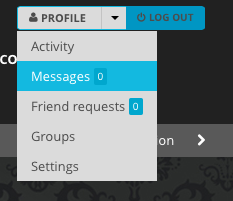
Then scroll down on your page and in your dashboard there will be a few options and you will be able to view, compose, reply, or delete messages.
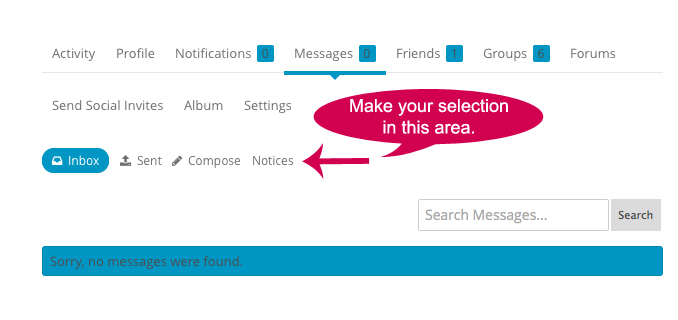
Inbox: View, delete, search, bulk delete incoming messages. Visible to logged in member only.
Sent: View, delete, search, or bulk delete outgoing messages. Visible by the logged in member only.
Compose: Send an email. Visible to logged in member only.
Notices: Sitewide notice to all Users [/kleo_accordion_item]
[kleo_accordion_item title=”To a Member Not in Your Friends List”] Either follow step 1 or go the the members profile, click on PRIVATE MESSAGES in the members header area and you will be redirected to your messages – Compose Screen. The logged in member will be notified about the message via Notification alert in their dashboard and via email if enabled.
[/kleo_accordion_item][/kleo_accordion]
[kleo_h4] BLOCK/UNBLOCK A MEMBER [/kleo_h4]
[kleo_accordion opened=”none”] [kleo_accordion_item title=”From Your Profile “] Go to the top MENU BAR and click on SEARCH MEMBERS scroll down to MEMBERS SEARCH.
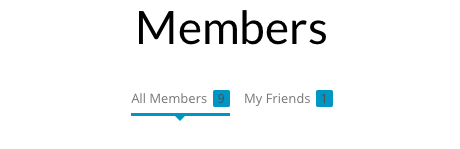
Once you have access to the members directory on the top of your page you will have the option to view all members or view only friends. Go to the members profile page and click on BLOCK in the members header area.
Once you have blocked a member:
- Cannot see any of your activity on the site.
- Cannot send or reply to a message – they will get a custom error notice
- Cannot visit your profile page – they will be sent to the home page
- Cannot see you on the Members page or a Group Members page
This will NOT block the member/s from the CHAT you must block them separately. Please follow the next step.[/kleo_accordion_item]
[kleo_accordion_item title=”In Chat”] Open your chat and click on the member you would like to block and not the top of the chat screen you will have the option to block that member. If you would like to unblock the member just go the MANAGE BLOCKED USERS in the chat and unblock the member. This will NOT block members from your profile, please follow the previous step to do so.[/kleo_accordion_item][/kleo_accordion]
[kleo_h4] NOTIFICATIONS [/kleo_h4]
[kleo_accordion opened=”none”] [kleo_accordion_item title=”Join Group”] Go to the admin bar at the top of the page (PROFILE/LOG OUT SECTION). Click on the ARROW and choose NOTIFICATIONS and then scroll down to your dashboard and enable/disable to your liking. [/kleo_accordion_item][/kleo_accordion]
[kleo_h4] ACTIVITY STREAMS [/kleo_h4]
[kleo_accordion opened=”none”] [kleo_accordion_item title=”What is an Activity Stream?”] Shows the Member’s activities throughout the site. [/kleo_accordion_item]
[kleo_accordion_item title=”Activity Streams”].
Go to the admin bar at the top of the page (PROFILE/LOG OUT SECTION). Click on the ARROW and then click the ACTIVITY link.
SECTIONS
Personal- Shows your activities throughout the site. The status update form and following buttons are visible for logged-in members only.
Viewing Personal Section: Everything (default), Updates, Posts, Comments, Friendships, New Groups, or Group Memberships
Status Update – visible to all logged in members only
Able to Reply to Comment link, delete, favorite, report user
Mentions- Shows a list of all @mentions for you. The following buttons are visible for logged-in members only.
Viewing Mentions Section: Everything (default), Updates, Posts, Comments, Friendships, New Groups, or Group Memberships
Able to Reply to Comment link, delete, favorite, report user
Favorites- Shows a list of all items you clicked as “Favorite”. The following buttons are visible to the member only.
Viewing Favorites Section: Everything (default), Updates, Posts, Comments, Friendships, New Groups, or Group Memberships
Able to Reply to Comment link, delete, favorite
Friends- Shows a list of all items you clicked as “Favorite”. The following buttons are visible to the member only.
Viewing Friends Section: Everything (default), Updates, Posts, Comments, Friendships, New Groups, or Group Memberships
Able to Reply to Comment link, delete, favorite, report user
Groups- Shows the Activity Streams of the groups you’ve joined. The following buttons are visible to the member only.
Viewing Groups Section: Everything (default), Updates, Posts, Comments, Friendships, New Groups, or Group Memberships
Able to Reply to Comment link, delete, favorite, report user
[/kleo_accordion_item][/kleo_accordion]
[kleo_h4] GROUPS [/kleo_h4]
[kleo_accordion opened=”none”] [kleo_accordion_item title=”Join Group”] Go to the community page and choose a group you would like to join. Click on join group. [/kleo_accordion_item]
[kleo_accordion_item title=”Leave Group”] Go to your admin bar at the top of your page (PROFILE/LOG OUT SECTION) and your will see PROFILE and an arrow next to it. Click on the GROUPS link, you will then be able to view all the groups you joined. Click on the group you would like to leave, and then on the group page, click on LEAVE GROUP. Another option would be to go to the COMMUNITY PAGE, and you will be able to view the COMMUNITY DIRECTORY. You will be able to LEAVE GROUP from that same page.
[/kleo_accordion_item][/kleo_accordion]
[kleo_h4] ALLOW POP UP NOTIFICATIONS FOR MOBILE LIVE CHAT [/kleo_h4]
[kleo_accordion opened=”none”] [kleo_accordion_item title=”iPhone Settings”] Select the SETTINGS icon on your home screen. Scroll down until you see the choice labeled SAFARI. Select SAFARI. In this section you will see the Block Pop-Ups option. Please make sure to disable this if you are not able to view live chat notifications. In other words, do NOT block Pop-Ups. [/kleo_accordion_item]
[/kleo_accordion]
[kleo_h4] WHAT IS LIVE CHAT [/kleo_h4]
[kleo_accordion opened=”none”] [kleo_accordion_item title=”Easily Socialize with your Friends!”] Chat live with everyone that is online! Once the site grows you will only be able to chat with your added friends. Receive live chat notifications, change your status, one-on-one private chatroom, group chatrooms, block users, or create your own chatroom!
[kleo_one_half]
[kleo_colored_text color=”#F00056″] Desktop Preview [/kleo_colored_text]
 [/kleo_one_half] [kleo_one_half]
[kleo_colored_text color=”#F00056″] Chatroom Mobile Preview [/kleo_colored_text]
 [/kleo_one_half] [/kleo_accordion_item]
[kleo_accordion_item title=”Live Chat Users are not Visible”] You must have a membership plan to use Live Chat feature. When your membership expires you will be have access to the Live Chat page on the Mobile App version, but it will NOT show who is online. The website version automatically disables the Pop Up chat on the bottom right side of your page. [/kleo_accordion_item] [/kleo_accordion]
Can’t find what your looking for? Contact us!